No More Phone Calls: The Easy Way to Book Local Appointments Online
Booking appointments should feel simple. Online platforms now let you search, compare, and confirm local services in minutes without making a single phone call.
May 13, 2026

Remember when booking an appointment meant a long phone call, waiting on hold, and hoping someone answered? Then, call again if they were closed or fully booked?
Those days are mostly behind us, and honestly, good riddance.
Now you can easily book appointments online from your phone or laptop. Whether you need a doctor's appointment, a haircut, car service, a spa appointment, or a government appointment, most local businesses let you book in minutes without speaking to anyone.
If online booking confuses you, follow this step-by-step guide. It’s simple. Don’t worry if you’ve never done this before; these steps are for beginners.
Why Book Online Instead of Calling?
Before we cover the steps, here’s why online booking is beneficial.
- Book anytime that suits you, even at midnight. No more waiting for business hours; it’s on your schedule.
- See real-time appointment slots. Instantly select what works for you with no waiting for callbacks or unclear options.
- Finish booking in under five minutes. Save time and move on with your day.
- Receive instant confirmation by email or text. Know right away your appointment is locked in.
- Skip the discomfort of phone calls. Enjoy booking without awkwardness or pressure.
Now that you know the benefits of online booking, let’s move into the step-by-step process.
Step 1: Find the Local Service You Need
First, find the business or service you want. If you know the name, search it on Google.
If you don’t have a specific place in mind, search for something like:
- “dermatologist near me.”
- “The barbershop near me opens on Saturday.”
- “car wash booking [your city].”
- “physiotherapy clinic near .me”
Google will show a list of local results with ratings, addresses, hours, and often a direct “Book Online” button.
Practical example: Let’s say you want to book a dental cleaning. You search “dentist near me” on Google. A few options appear. You click one with 4.8 stars and 200+ reviews, and on their Google profile, there’s a blue “Book an appointment” button. That’s your entry point.
Step 2: Check If They Have Online Booking
Not all businesses offer online booking, though most do now. To check quickly:
- Look for a “Book Now” or “Schedule Online” button on their website homepage.
- Check their Google Business profile; many businesses link their booking system there.
- Look at their social media pages; Instagram and Facebook pages often have a “Book” button at the top.
- Check booking platforms, such as Zocdoc, Booksy, Fresha, Calendly, Velorisce, or SimplyBook.me, as they sometimes host local businesses you can book through directly.
If none of these options work and there’s no online booking, you’ll need to call or message the business directly. Look for a phone number or contact form on their website, usually on the homepage or under 'Contact Us'. You can also check their Google Business profile or social media for up-to-date contact details. Still, in 2026, most salons, clinics, gyms, and service providers offer online booking.g.
Step 3: Choose Your Service
On the booking page, select the service you need.
Most booking systems show a simple menu. For a hair salon, it might look like:
- Haircut: 30 mins
- Color Treatment: 90 mins
- Wash & Blow Dry: 45 mins
Click or tap the one that matches your needs. If you’re unsure which to pick, read the descriptions carefully. Some services sound similar but have different durations or prices.
tip
If you can’t figure out which service applies, most booking pages have a “Contact Us” or chat option. Use it; it only takes a second to ask.
Step 4: Pick a Date and Time
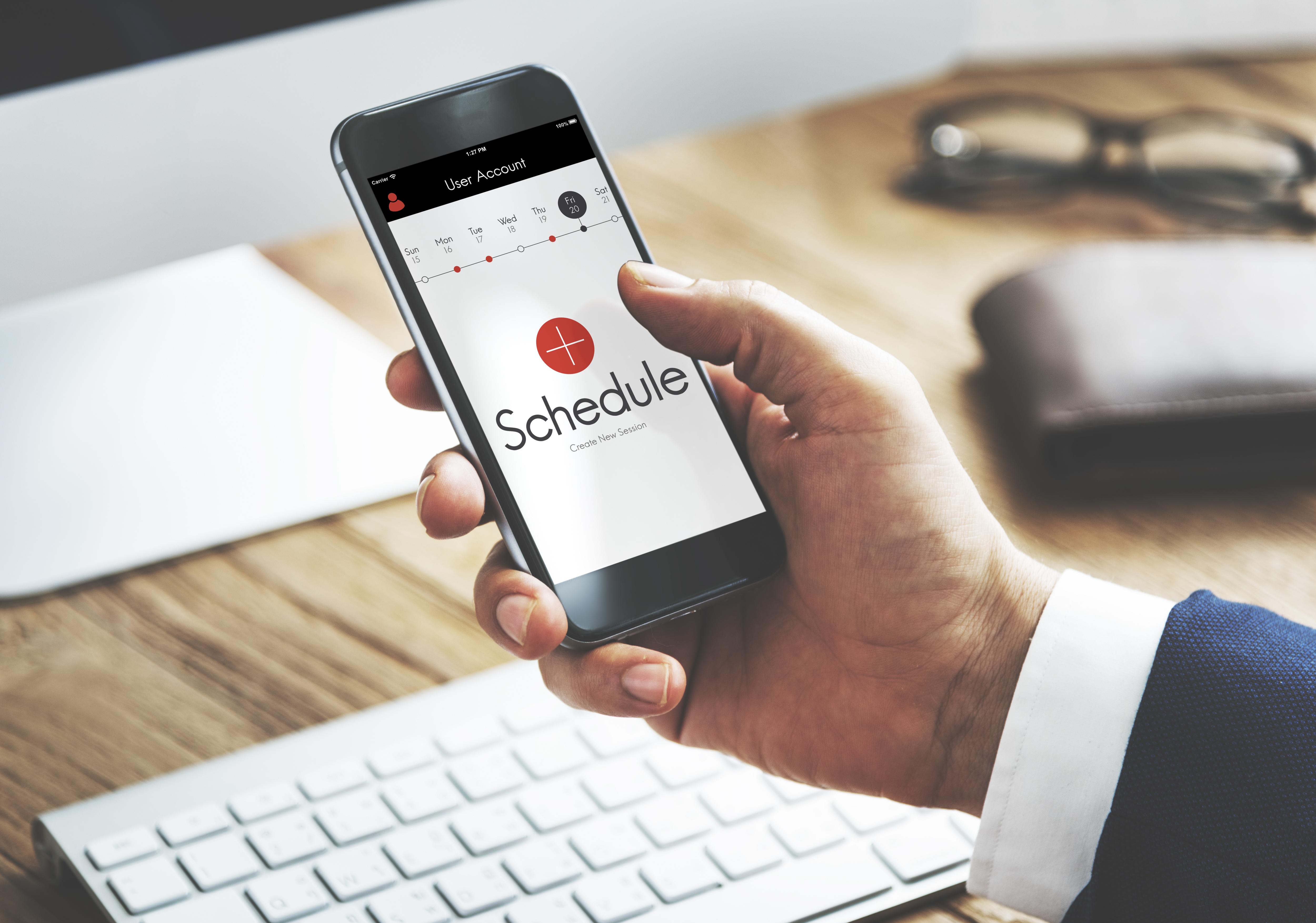
After picking your service, view a calendar with available dates. Fully booked dates are usually greyed out. Tap a date to see available time slots.
Pick a time that fits your schedule, not just the first option. Consider:
- Travel time to get there
- Whether you’ll need time to prepare beforehand (showering before a massage, eating before a blood test, etc.)
- Buffer time in case you run late
tip
If your preferred time isn’t available, scroll ahead a few days. Cancellations happen often, so slots that looked full yesterday may open today.
Step 5: Enter Your Personal Details
Next, you’ll fill in a short form with your details. This usually includes:
- Full name
- Email address
- Phone number
- Sometimes: a reason for the visit or any notes
Enter accurate contact details. They’ll use them for confirmation and updates.
For a first-time booking, you may need to create an account or verify your email. This takes less than 2 minutes and speeds up future bookings.
Step 6: Review and Confirm
Before you tap the final confirm button, take 30 seconds to review everything:
- Is the service correct?
- Is the date and time right?
- Is your contact information accurate?
- Is the location what you expected?
Some bookings are easy to change; others have strict policies or fees. It’s better to catch mistakes now than later.
When satisfied, hit Confirm (or “Book Now,” etc.) on the platform.
Step 7: Save Your Confirmation
After confirming, you get a confirmation message, almost always by email, often by text too.
Don’t ignore this. Do the following:
- Add the appointment to your phone calendar. Most emails have an “Add to Calendar” link; use it.
- Save the confirmation number or code for possible rescheduling or cancellation.
- Read all included instructions. Some appointments have prep notes: what to bring, wear, eat, or parking info.
Step 8: Manage Your Appointment (Reschedule or Cancel If Needed)
If you need to change your appointment, most online booking systems make it easy.
Your confirmation email usually has a link to manage or reschedule your booking. Use it to change the date or time without calling.
A few things to keep in mind:
- Cancellation policies vary. Some businesses require 24 or 48 hours’ notice to cancel without a fee. Always check in advance.
- Don’t just show up. A no-show wastes the service provider’s time and can result in a charge to your card.
- Reschedule early if you can’t make it. Earlier is better than last-minute.
Popular Platforms for Booking Local Appointments
Different industries tend to use different booking platforms. Here’s a quick overview:
For Healthcare and Medical
- Zocdoc: Great for finding and booking doctors, dentists, and specialists near you
- Practo: Popular in some regions for medical and wellness appointments
- Direct hospital or clinic websites: Most large healthcare providers have their own portal.
- Velorisce: is a digital platform that connects users with verified local service providers across home services, wellness, healthcare support, beauty, cleaning, relocation assistance, and community-based services.
For Beauty and Wellness
- Booksy: Widely used by barbershops, nail salons, and hair stylists
- Fresha: Common for spas and beauty salons
- Vagaro: Used by salons, spas, and fitness studios
- Velorisce: is a digital platform that connects users with verified local service providers across home services, wellness, healthcare support, beauty, cleaning, relocation assistance, and community-based services.
For Government and Public Services
- Official government websites: Most passport offices, immigration centers, and public service departments now have dedicated online booking portals.
- Search “[service name] online appointment booking [your country/state]” to find the right portal
- Velorisce: is a digital platform that connects users with verified local service providers across home services, wellness, healthcare support, beauty, cleaning, relocation assistance, and community-based services.
For Local Services (Cleaners, Repairs, etc.)
- TaskRabbit: For household tasks and local professionals
- Thumbtack: Request quotes and book local service professionals
- Google Business profiles: Many local businesses link directly to their booking system from Google.
- Velorisce: is a digital platform that connects users with verified local service providers across home services, wellness, healthcare support, beauty, cleaning, relocation assistance, and community-based services.
Common Mistakes to Avoid When Booking Online
Even simple online booking has pitfalls. Avoid these mistakes:
- Booking the wrong location. Many businesses have multiple branches. Double-check the address before confirming.
- Wrong time zone. If you’re booking across different regions, say, for a telehealth appointment, confirm whether the time shown is in your local zone or theirs.
- Missing preparation instructions. Some appointments require fasting, bringing documents, or arriving early. Skipping prep notes can mean a wasted trip.
- Not providing a phone number. If something changes on their end, they need a way to reach you quickly.
- Forgetting to confirm email verification. Some platforms send a verification email before your booking is locked in. Always check your inbox and spam folder.
Actionable Tips for a Smooth Online Booking Experience
A few habits that make the whole process easier every time:
FAQs About Booking Appointments Online
Is it safe to book appointments online?
What if the service I need isn’t listed on their booking page?
Do I need to pay up front when booking online?
Can I book for someone else online?
What happens if I don’t receive a confirmation email?
How far in advance should I book?
Conclusion
Booking a local appointment online really does come down to a few simple steps: find the service, pick your time, fill in your details, and confirm. That’s it. The whole thing can take less time than it takes to find your earphones.
The key is knowing where to look and what to check before you hit confirm. Once you’ve done it a couple of times, it becomes second nature, and you’ll wonder how you ever tolerated being put on hold for ten minutes to book a haircut.
Whether it’s your first time or you just needed a refresher, you’re now fully equipped to book any local appointment online with confidence. Get that slot before someone else does.
Skip the calls and book smarter. Find trusted local services online and schedule appointments in just a few clicks.
Get Started Today